







.png?width=319&height=267&name=gtmetrix_2023%20(1).png)

You are one click from a decision that is hard to reverse
You are on the marketplace, a theme looks right, and the button says Purchase. Before you press it, three facts change how carefully you should be reading this page.
There is no trial. Paid themes have no test drive, no time-limited version, nothing. You get a Preview and the provider's live demo, and then you buy.
The refund is not a safety net. HubSpot sets no refund period and does not arbitrate. "I changed my mind" is explicitly listed as an invalid reason. And a granted refund deletes the pages you built.
Switching later means rebuilding. Setting a new active theme does not change existing content. Every page you build on the wrong theme is a page you will rebuild by hand.
None of that makes buying risky. It makes the twenty minutes before buying worth more than any twenty minutes after. Here is how to spend them.
Step 1: Read the listing for the four fields that matter
A marketplace listing shows a lot. Most of it is marketing. These four are not.
Version number and last update date
At the top of every listing, alongside a "View version history" link. This is the single highest-signal field on the page.
A theme on version 94 updated last month is a maintained product. A theme on version 12 updated in January 2025 is a decision someone stopped making.
Two traps here. First, HubSpot only delists assets that have not been downloaded in 180 days. The criterion is popularity, not maintenance, so a widely installed theme that stopped shipping years ago keeps its listing forever. Being in the marketplace proves nothing.
Second, a provider can update the listing's text and images without resubmitting any code. Code changes require re-validation by HubSpot's quality team; listing copy does not. A listing that looks freshly written is not evidence of a freshly built theme. Only the version number is.
Asset counts, and which one to read
Listings show page templates, system templates, modules and sections. Read them in this order:
- Sections first. They range from 5 to 45 across the market and predict how fast a non-designer builds a page. This is the number that actually varies.
- System templates second. From 8 to 19. You will need them in launch week.
- Modules last. HubSpot caps themes at 50 and everyone serious is at 46 to 50. The number is noise.
One caution: listings occasionally contradict themselves, with the asset counter saying one thing and the description saying another. Trust the counter and ask the provider about the gap.
Supported languages
HubSpot does require themes to support multiple languages and to avoid hard-coded text, and the listing states which languages the provider supports. If yours is not there, ask what adding it involves before you buy, not after.
Required HubSpot subscription
Listed as "HubSpot Subscription" with a link to compatible plans. Check it against what you actually have. HubSpot's free plan does not support themes at all, and Content Hub Starter does not accept templates on landing pages and has no native CTAs or video player, which several premium templates use.
Step 2: Test it for free, which is more possible than you think
No trial does not mean no testing. Three free options, in increasing order of realism.
Preview and the live demo
Every listing has a Preview button showing the theme at desktop, tablet and mobile sizes, and every listing is required to link to a live example on the provider's own domain. HubSpot requires this to be a working site, not screenshots of one.
Use the live demo, not the preview. Then do these three things on it, which almost nobody does:
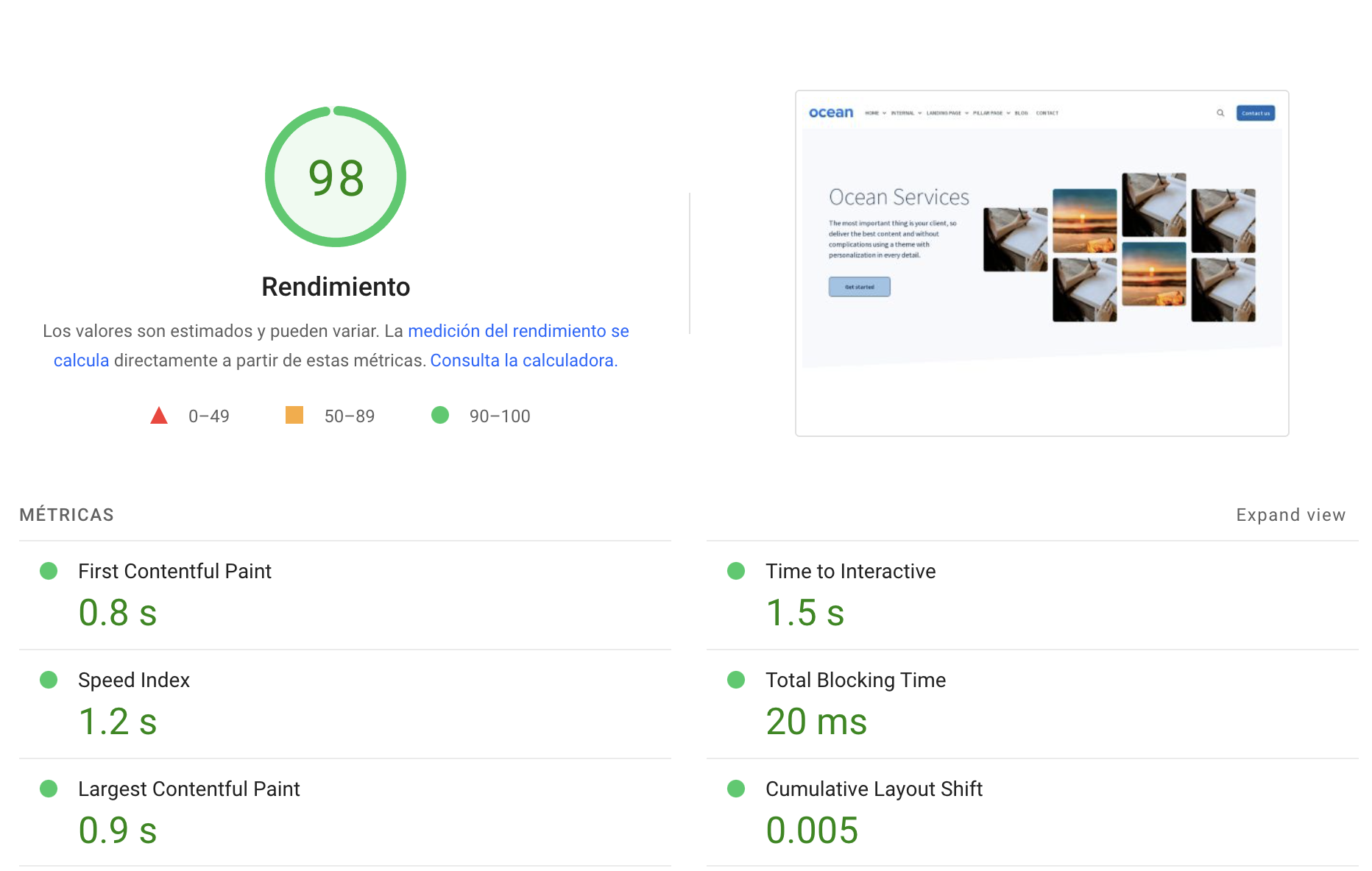
- Run Lighthouse. Chrome DevTools, mobile mode. HubSpot's approval floor is a mobile performance score of 40 out of 100, so approval tells you very little. Your own measurement tells you everything.
- Navigate with the keyboard only. Tab through the nav, open the mega menu, reach a form. HubSpot requires no WCAG conformance level, so this is entirely on you.
- Load it on your actual phone. Not the responsive simulator.
A free CMS sandbox
This is the option most people do not know exists. A CMS sandbox is a free HubSpot account intended for building and testing website changes without touching your production portal, with access to Content Hub Enterprise functionality apart from connecting a domain.
Standard sandboxes are Enterprise-only, but the CMS sandbox is not, and neither are developer test accounts, which allow up to ten and include Content Hub limits of 25 website pages, one blog and 25 landing pages.
That gives you somewhere to install free themes and build a real page with your own content and brand, which is a far better test than any demo.
One thing we could not verify and you should not assume: HubSpot does not document whether a marketplace purchase is available inside a sandbox. The official list of assets copied into a standard sandbox does not include CMS assets. If your plan is to buy once and test in a sandbox, confirm that with the provider in writing before you pay.
Ask the provider for a build
Underused and free. Email the provider a screenshot of a page you need and ask which template and sections would produce it. A good provider answers with specifics in a day. A vague answer, or a slow one, is itself the result of your test.
Step 3: Understand the refund before you rely on it
This deserves its own section because the market assumption is wrong.
HubSpot's marketplace refund guidelines set no time limit in days. There is no 30-day marketplace policy, no 14-day policy, nothing. Where you see a refund window advertised, that is the provider's own commitment layered on top of a marketplace that requires none. Ours at Media Source is 30 days, and we are telling you that it is ours and not HubSpot's.
HubSpot also does not arbitrate: "all refund requests are between the buyer and the provider. HubSpot does not have any role when a refund is requested."
The valid reasons are narrow and worth knowing exactly:
- The item materially differs from its description
- It does not work as it should and cannot easily be fixed
- Support or setup was promised and not provided
- It has a security vulnerability that is not quickly fixed
Explicitly not valid: you changed your mind, it did not meet your expectations, you bought it by mistake, or you lack the expertise to use it.
And the consequence nobody advertises. When a refund is granted, HubSpot "automatically removes the files associated with the item, as well as any dependencies (e.g., pages created, cloned templates and modules) created from the item."
A refund deletes your pages. Which leads to the single most practical rule in this article: after you buy, build two or three pages and stop. Live with them for a week. Only then build the other thirty.
Step 4: Check the abandonment signals
Five signals, all visible before you spend anything.
| Signal | Where to look | What is bad |
|---|---|---|
| Last update date | Listing header | More than 12 months ago |
| Version cadence | Version history link | A burst of releases then silence |
| Support response | Email them before buying | No reply, or a reply in a week |
| Documentation | Required link on the listing | A landing page instead of real docs |
| Review content | Reviews, read them not count them | Recent reviews mentioning unanswered support |
On that last row: review volume is a poor signal, since it tracks how long a listing has existed. Review recency and content is a good one. Three reviews from this year describing fast support beat two hundred from 2022.
Step 5: Know what installing and uninstalling actually do
Mechanics worth having straight, including one gap in HubSpot's own documentation.
Installing. From the marketplace, free themes install directly and paid themes go through the provider's payment processor. Installed assets live in Marketplace Downloads.
Updating. Not automatic. New versions appear in Marketplace Downloads and someone has to click Install update. If you believe you are on the latest version, check rather than assume.
Active theme. One theme is active at a time and it only governs newly created pages. Changing it does not touch existing content, which has to be migrated page by page.
Uninstalling. Purchased themes are uninstalled from the marketplace, not deleted in the design manager. HubSpot's guidance notes that "before uninstalling, you may need to change the template of a blog post or page."
Here is the gap, stated plainly because we would rather flag it than guess: HubSpot does not document what happens to pages built with a theme when you uninstall it outside of the refund scenario. The refund case is documented and destructive. The plain-uninstall case is not documented at all. Treat uninstalling a theme with live pages on it as something to ask support about first.
The twenty-minute vetting routine
- Listing: version number and date. Older than a year, stop here.
- Listing: sections count, system templates count, supported languages, required subscription.
- Demo: run Lighthouse on mobile.
- Demo: tab through it with the keyboard.
- Demo: open it on your phone.
- Email the provider a real question. Note when they reply.
- Ask two things in writing: what the license covers across your domains, and what their refund policy is.
- Read the three most recent reviews, ignoring the count.
Then buy, build three pages, and wait a week before building the rest.
FAQ
Can I try a HubSpot theme before buying it?
Not directly. Paid marketplace themes have no trial or test-drive version. What you get is a Preview on the listing and a live demo on the provider's domain, which HubSpot requires to be a working site rather than images. You can also install free themes in a free CMS sandbox or a developer test account to evaluate the building experience with your own content.
What is HubSpot's refund policy for marketplace themes?
HubSpot publishes no refund period in days and does not arbitrate: refund requests are between the buyer and the provider. Valid reasons are limited to the item materially differing from its description, not working and not being easily fixable, promised support not being delivered, or an unfixed security vulnerability. Changing your mind is explicitly not a valid reason. Any specific refund window you see advertised is that provider's own policy.
What happens to my pages if I get a refund on a HubSpot theme?
They are deleted. HubSpot automatically removes the files associated with the item and any dependencies created from it, including pages, cloned templates and cloned modules. This is why it is worth building only two or three pages immediately after purchase and waiting before you commit the whole site.
How can I tell if a HubSpot theme is abandoned?
Check the version number and last update date on the listing, then the version history for cadence. Note that HubSpot only delists assets not downloaded in 180 days, so a popular but unmaintained theme stays listed indefinitely. A provider can also refresh the listing's text and images without resubmitting code, so only the version number reflects the actual product.
Can I test a HubSpot theme in a sandbox?
You can test free themes in a free CMS sandbox or a developer test account. For a purchased theme, HubSpot does not document whether the purchase is available inside a sandbox, and its published list of assets copied to a standard sandbox does not include CMS assets. Confirm this with the provider before buying if sandbox testing is part of your plan.
Do I lose my pages if I uninstall a HubSpot theme?
HubSpot does not document this case, which is worth knowing. Its guidance says only that before uninstalling you may need to change the template of a blog post or page. The refund scenario is documented and does delete dependent pages. Given the ambiguity, ask HubSpot support before uninstalling a theme that has live pages built on it.
Start here
Ocean Pro's listing shows version 56, updated July 2026, with 42 page templates, 19 system templates, 48 modules and 45 sections. Run the routine above against it the same way you would against anyone else's, starting with Lighthouse on the demo.
Our own terms, stated rather than implied: the license covers every domain inside the HubSpot account that purchased it, and we offer a 30-day refund, which is our policy and not HubSpot's, with the page-deletion caveat that applies to every refund on the marketplace.
For the full evaluation framework, read How to Choose a HubSpot Theme: A 12-Point Checklist. For the shortlist, read Best HubSpot Themes for B2B Websites in 2026.
